In our previous articles, we explored a complete overview of PHP — including its key features, benefits, and popular CMS platforms built with it. If you are planning to learn PHP or start building PHP-based websites and web applications, setting up a local development environment is one of the first steps you need to take.
A local PHP development environment allows you to write, run, and test PHP code directly on your computer without uploading your files to a live web server. It provides a safe and convenient way to experiment with PHP, work on projects, and test changes during development.
In this post, we’ll walk you through a step-by-step guide to setting up a PHP development environment on your local system. We’ll look at some commonly used tools and learn how to set up a basic PHP project using XAMPP and MAMP.
If you have not checked my article which is about PHP programming guide then you can check it here.
Table of contents:
- What is PHP?
- Popular Tools for Local PHP Development
- How to setup local PHP development environment using XAMPP?
- How to setup local PHP development environment using MAMP?
- Common Issues and Troubleshooting
- XAMPP vs MAMP
1 – What is PHP?
PHP is an open-source, server-side scripting language designed for web development. Developers often embed PHP into HTML to build dynamic and interactive web pages. You can also use PHP to connect with databases, process forms, and manage sessions on the server.
2 – Popular Tools for Local PHP Development
Here are some commonly used tools and platforms for setting up a local PHP development environment:
- XAMPP – A popular local development package that provides PHP along with a web server and database components.
- MAMP – A local development environment that provides the tools needed to run PHP applications on a local computer.
- WampServer – A Windows-based development environment for running PHP applications locally.
- Vagrant – A tool that helps developers create and manage reproducible development environments.
- Docker – A container-based platform that can be used to create isolated PHP development environments.
- Local – A local development tool primarily focused on WordPress websites and development.
Developers often choose XAMPP and MAMP first when setting up a local PHP development environment, as these tools are among the most popular options available.
3 – How to setup local PHP development environment using XAMPP?
XAMPP is an open-source web server solution package used to create a local development environment for testing and developing web applications. XAMPP stands for Cross-Platform, Apache, MariaDB, PHP, and Perl.
Follow the steps below to set up a local PHP development environment using XAMPP.
1 – Download and install XAMPP on your computer. During installation, you can use the default installation location.
2 – After installing XAMPP, open the XAMPP Control Panel and start the Apache and MySQL (MariaDB) modules. Apache is used as the web server, while MariaDB is used for database-related development.
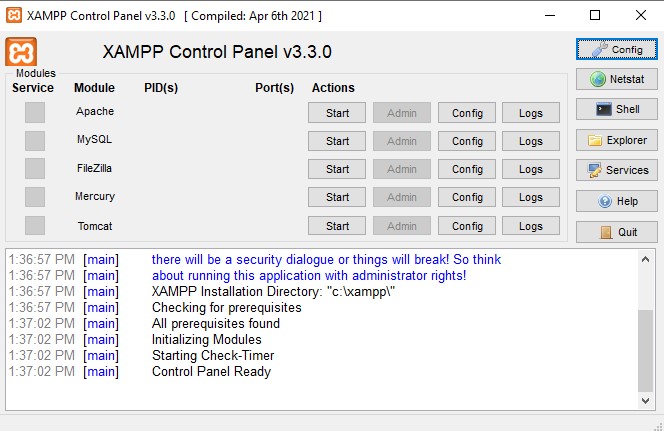
3 – On Windows, the default XAMPP installation directory is usually: C:\xampp\htdocs. The htdocs directory is the document root where you can store your PHP projects.
4 – Inside the htdocs directory, create a new directory for your PHP project. For example, create a directory named Project1.
The project path will be: C:\xampp\htdocs\Project1
5 – Open the Project1 directory and add your PHP files. For example, create a file named index.php.
Your project structure will look like this: C:\xampp\htdocs\Project1\index.php.
6 – Now add your all PHP files in this Project1 directory. For ex. I create one php file in this Project1 directory i.e. index.php.
<!-- index.php file -->
<?php
  echo "Hello, PHP!";
?>7 – Open your web browser and visit: http://localhost/Project1/
Apache will process the PHP file, and you can see the output of your index.php file in the browser.
You can also access the file directly using: http://localhost/Project1/index.php
4 – How to setup local PHP development environment using MAMP?
MAMP is a local server environment that allows developers to develop and test PHP-based websites and web applications on their computers without requiring a live web server. MAMP provides the tools needed to run a local web server, including Apache or Nginx, PHP, and MySQL.
The main components of MAMP:
- Apache – A web server used to serve your website and PHP applications.
- Nginx – An alternative web server that can be used instead of Apache.
- PHP – A server-side scripting language used to develop dynamic web applications.
- MySQL – A relational database management system used to store and manage application data.
Follow the steps below to set up a local PHP development environment using MAMP.
1 – Download and install MAMP from the official MAMP website.
2 – Open the MAMP application and start the local server by clicking the Start button.
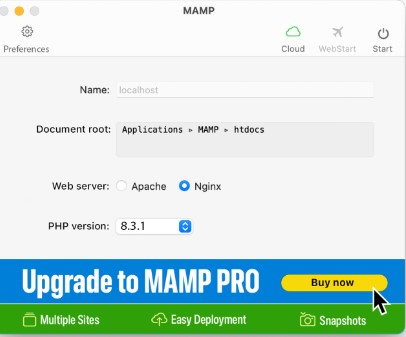
3 – On macOS, the default MAMP document root is: /Applications/MAMP/htdocs. The htdocs directory is where you can store your local PHP projects.
4 – Inside the htdocs directory, create a new directory for your PHP project. For example, create a directory named Project1.
The project path will be: /Applications/MAMP/htdocs/Project1.
5 – Open the Project1 directory and add your PHP files. For example, create a file named index.php.
Your project structure will look like this: /Applications/MAMP/htdocs/Project1/index.php.
<?php
  echo "Howdy, PHP!";
?>6 – Open your web browser and visit: http://localhost/Project1/.
MAMP will process the PHP file through the local web server, and you can see the output of your index.php file in the browser.
You can also access the file directly using: http://localhost/Project1/index.php.
5 – Common Issues and Troubleshooting
When working with a local PHP development environment, beginners may encounter issues related to the web server, ports, PHP configuration, or project paths. Here are some common issues and their solutions.
5.1 – Apache Server Does Not Start
Sometimes Apache may fail to start because another application is already using the port required by Apache, such as port 80 or 443.
Solution: Check which application is using the port and either stop that application or configure Apache to use another available port.
5.2 – MySQL/MariaDB Does Not Start
The database server may fail to start because its port is already being used by another application or because of a previous database-server issue.
Solution: Check the XAMPP or MAMP logs for the exact error and make sure the required database port is available.
5.3 – localhost Is Not Working
If http://localhost/ does not open, the Apache web server may not be running.
Solution: Open XAMPP or MAMP and make sure the Apache server is running. Then try accessing http://localhost/ again.
5.4 – PHP File Is Not Executing
If your PHP code is displayed as plain text or the browser downloads the PHP file instead of executing it, the request may not be going through a PHP-enabled web server.
Solution: Make sure Apache/Nginx and PHP are configured correctly, and access the PHP file through localhost rather than opening the file directly from your computer.
5.5 – 404 Not Found Error
A 404 Not Found error usually means that the requested file or directory cannot be found at the specified URL.
Solution: Check that your project is inside the correct document root and that the project and file names match the URL.
5.6 – PHP Errors or Warnings
PHP may display errors or warnings when there is a syntax error, undefined variable, missing file, or another problem in your code.
Solution: Read the error message carefully because it generally indicates the file, line number, and type of problem. Check that line of code and correct the issue.
5.7 – Changes Are Not Visible in the Browser
Sometimes changes to PHP, CSS, or JavaScript files may not immediately appear because the browser has cached an older version.
Solution: Refresh the page and, if necessary, perform a hard refresh or clear the browser cache.
5.8 – Project Is in the Wrong Directory
If your project is outside the web server’s document root, Apache or Nginx may not be able to access it through localhost.
Solution: Make sure your project is placed inside the appropriate document root, such as htdocs for XAMPP and MAMP.
6 – XAMPP vs MAMP
XAMPP and MAMP are popular tools for setting up a local PHP development environment. Both allow developers to run PHP applications on their computers without uploading them to a live web server.
Although they provide similar functionality, there are some differences in their supported platforms, web server options, database systems, and configuration.
XAMPP
XAMPP is an open-source local development environment that includes Apache, MariaDB, PHP, and Perl. It is available for Windows, macOS, and Linux.
XAMPP provides a simple control panel that allows developers to start and stop services such as Apache and MariaDB. It is commonly used for developing and testing PHP applications locally.
MAMP
MAMP is a local development environment that provides the tools required to run PHP applications on a local computer. It supports Apache and Nginx as web servers and includes PHP and MySQL.
MAMP is available for macOS and Windows and provides an application interface for managing the local development environment.
The following table highlights some of the main differences between XAMPP and MAMP:
| Feature | XAMPP | MAMP |
| Operating systems | Windows, macOS, Linux | macOS, Windows |
| Web server | Apache | Apache, Nginx |
| PHP | Yes | Yes |
| Database | MariaDB | MySQL |
| Perl | Yes | No |
| Local document root | htdocs | htdocs |
| Local development | Yes | Yes |
| GUI for managing services | Yes | Yes |
Conclusion
Setting up a local PHP development environment is the first step in starting your web development journey. In this article, we covered how to set up a project using XAMPP and MAMP. In the upcoming articles, we’ll explore more examples — including how to connect to a database and store data. If you have any questions or run into issues while setting up your project, feel free to reach out to me.
If you enjoyed this article, we’d love to hear your thoughts. Feel free to share your feedback, questions, or suggestions in the comments section below.
If you have any questions or would like to get in touch with us, please don’t hesitate to reach out us.
1 thought on “Getting Started with PHP: Setting Up Your Local Development Environment”