
In the previous article, I provided a step-by-step guide on how to set up WordPress locally using Local by Flywheel. I also gave a brief introduction to both WordPress and Local by Flywheel, highlighting the key features that make it stand out among other local development tools. In today’s article, we’ll explore how to set up WordPress using XAMPP.
Table of Contents:
- What is XAMPP?
- Comparison between XAMPP and other tools
- Features of XAMPP
- WordPress setup using XAMPP
1 – What is XAMPP?
XAMPP is a free and open-source web server solution stack package that allows developers to create a local web server environment on their computers. It’s designed to be easy to install and configure, providing all the necessary tools to develop and test websites locally before deploying them to a live server.
In essence, XAMPP simplifies the process of setting up a local web server for development and testing, allowing developers to work offline and experiment with their code without needing a live server environment.
Here is a list of core components of XAMPP:
- Apache: A widely used web server that handles HTTP requests and serves web pages.
- MariaDB / MySQL: Database management systems for storing and managing website data.
- PHP: A server-side scripting language used to create dynamic web content and interact with the database.
- Perl: Another scripting language, useful for web development, text processing, and system administration tasks.
2 – Comparison between XAMPP and other tools like WAMP
2.1 Cross-platform
XAMPP is cross-platform (Windows, macOS, Linux), while WAMP is Windows-only. XAMPP includes MariaDB (a MySQL fork), FileZilla, and Mercury Mail, whereas WAMP focuses primarily on PHP and MySQL.
2.2 Easy configuration
XAMPP simplifies the process by bundling the necessary components. While other tools like Virtual machine require more configuration efforts than XAMPP.
2.3 Highly customizable
XAMPP is highly customizable and you can customize it manually while other tools like Docker not provide more option for customization.
3 – Features of XAMPP
3.1 – Cross-Platform Compatibility
XAMPP runs on Windows, macOS, and Linux, making it versatile for different operating systems.
3.2 – User-Friendly Control Panel
XAMPP provides a control panel to easily manage and start/stop the different services like Apache, MySQL, and others.
3.3 Open Source and Free
XAMPP is free to use and distribute, making it accessible to a wide range of users.
3.4 Easy Setup and Configuration
XAMPP simplifies the process of setting up a local web server environment, requiring minimal configuration.
3.5 – Ideal for Development
XAMPP is a great tool for testing websites and web applications locally before deploying them to a live server.
3.6 – Support for CMS and Frameworks
XAMPP facilitates the development of various content management systems (CMS) and web application frameworks like WordPress, Joomla, and Drupal.
3.7 Reduced Installation and Setup Needs
XAMPP packages all the necessary components into a single installation, reducing the complexity of setting up a web server.
3.8 – Scheduled Backups
XAMPP can be configured to perform scheduled backups of the database, ensuring data safety.
3.9 – Suitable for Education and Learning
XAMPP is an excellent tool for learning about web development and server-side scripting.
3.10 – Add-on Compatibility
Compatible with various Apache modules and PHP extensions, allowing you to extend functionality as needed.
3.11 – OpenSSL Support
Lets you configure SSL/TLS certificates to simulate HTTPS in your local environment.
4 – WordPress setup using XAMPP
I will provide step-by-step guide to setup WordPress using XAMPP. You have XAMPP install and setup in your local system, right? If you have not installed XAMPP in your system then please download and install from the below link: https://www.apachefriends.org/download.html
To setup WordPress using XAMPP, there are main two steps we follow:
4.1 Create the database in MySQL
Open the XAMPP control panel by double-click on XAMPP icon from your local system.

Here, it display dashboard for XAMPP configuration and setup.
Start the Apache and MySQL by clicking on start button.
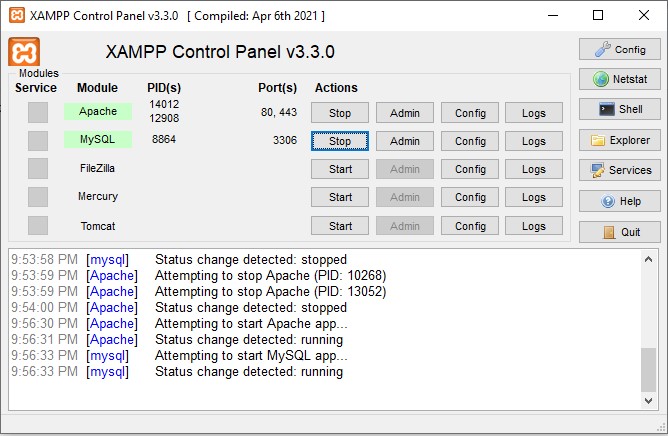
The software starts Apache server and MySQL database to run your WordPress setup.
In control panel, click on MySQL Admin button to open the phpmyadmin.

In the phpmyadmin, left side is a list of databases available. On the top menu there are many options available to perform different operations like import, export etc.
Click on new button from the left menu. It will open Create database window.
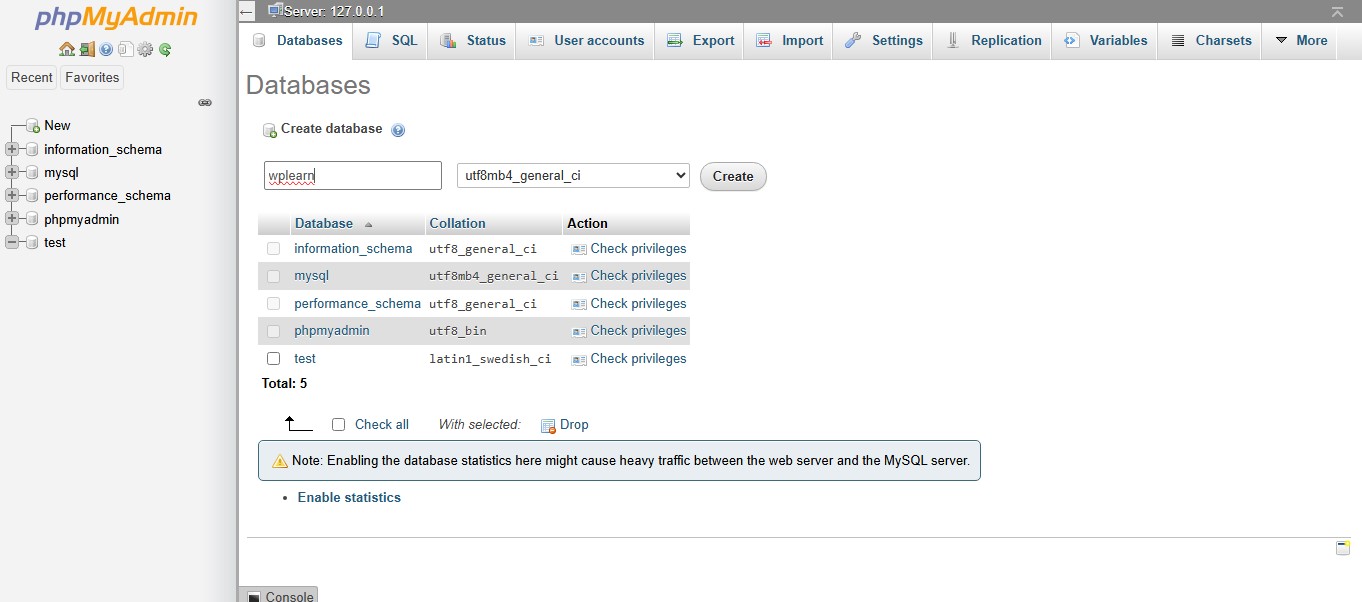
Enter database name and then click on create button. I am creating database with the name wplearn. Database creation process is complete.
In your local system, create a new directory with your project name in the xampp -> htdocs folder.
4.2 Download and install WordPress
Download wordpress software from the wordpress.org.
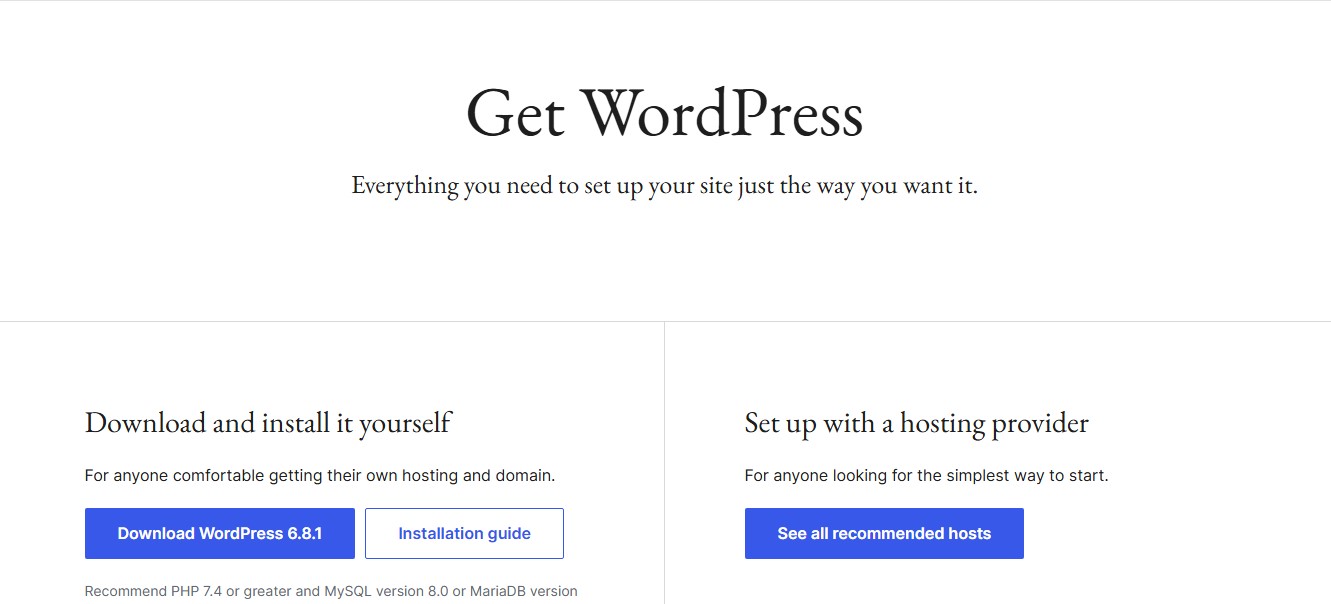
Click on Download WordPress 6.8.1. It will download wordpress-6.8.1.zip file in your local system Downloads folder.
Extract this .zip file and you find some folder and files in this extracted folder. These files are called WordPress core files.
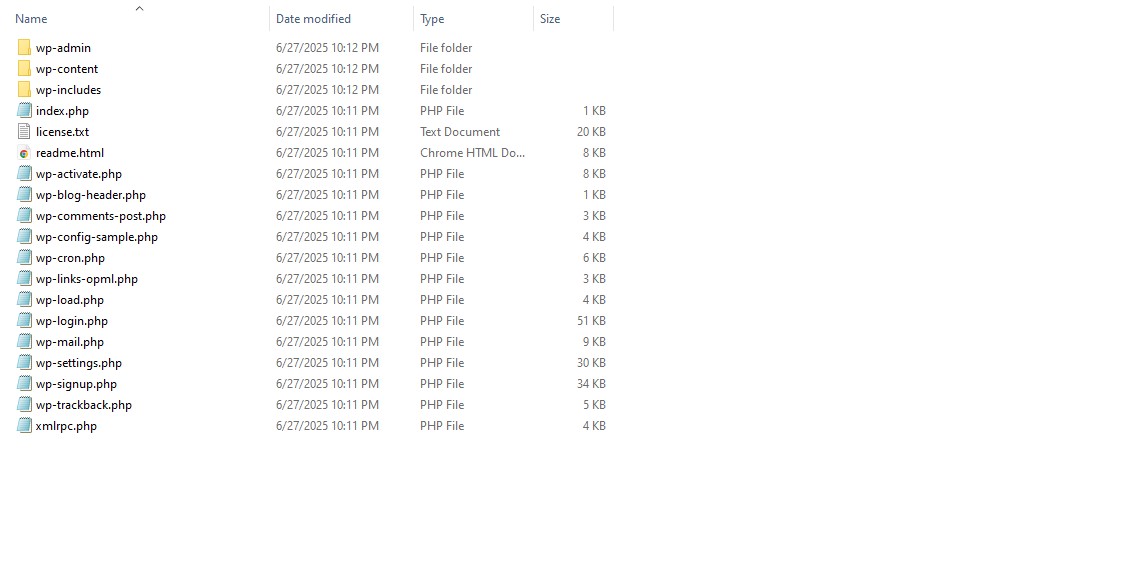
Copy these files and paste into project directory you created in htdocs folder. I am creating project directory with the name wplearn.
Go to browser and type http://localhost/your-project-directory name.
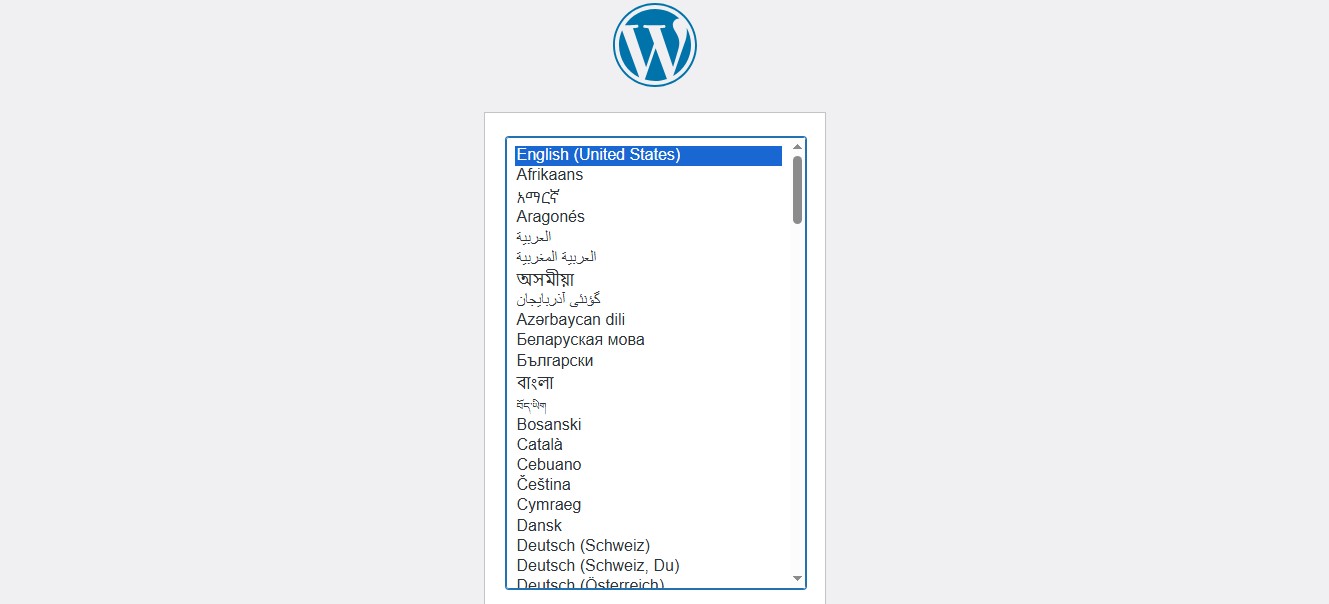
Choose your language and click on continue button.
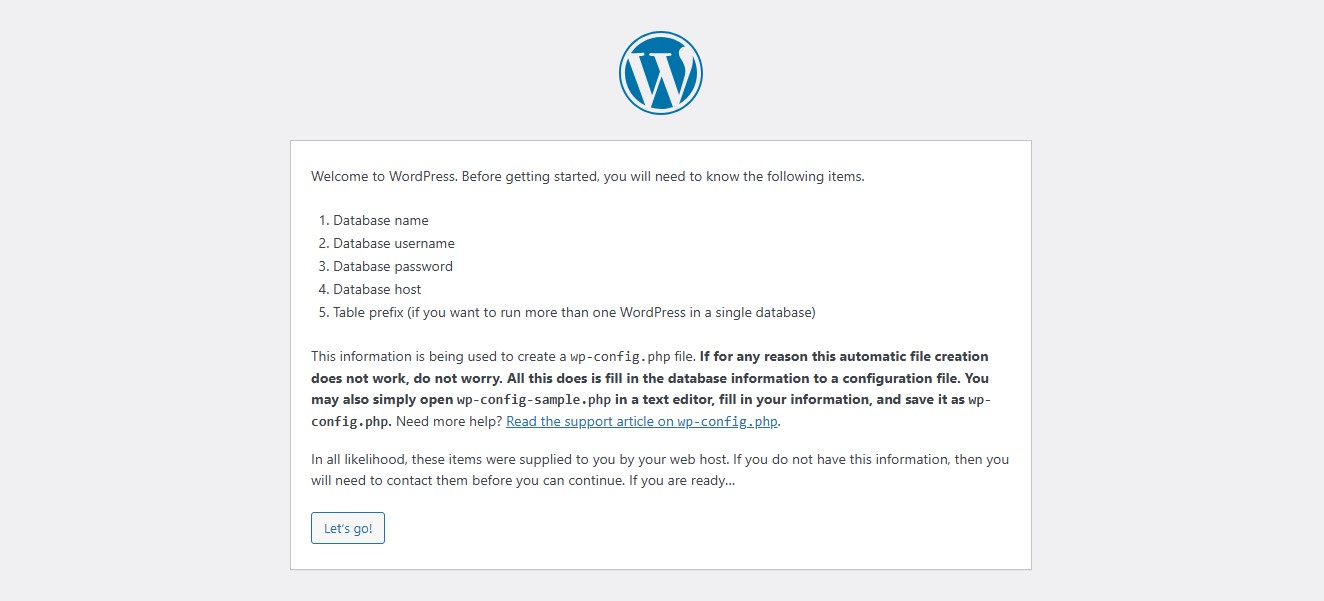
In the next step, prepare database details as per the above mentioned. Database name, Database username, Database password, Database host, and Table prefix and then click on Let’s go button.
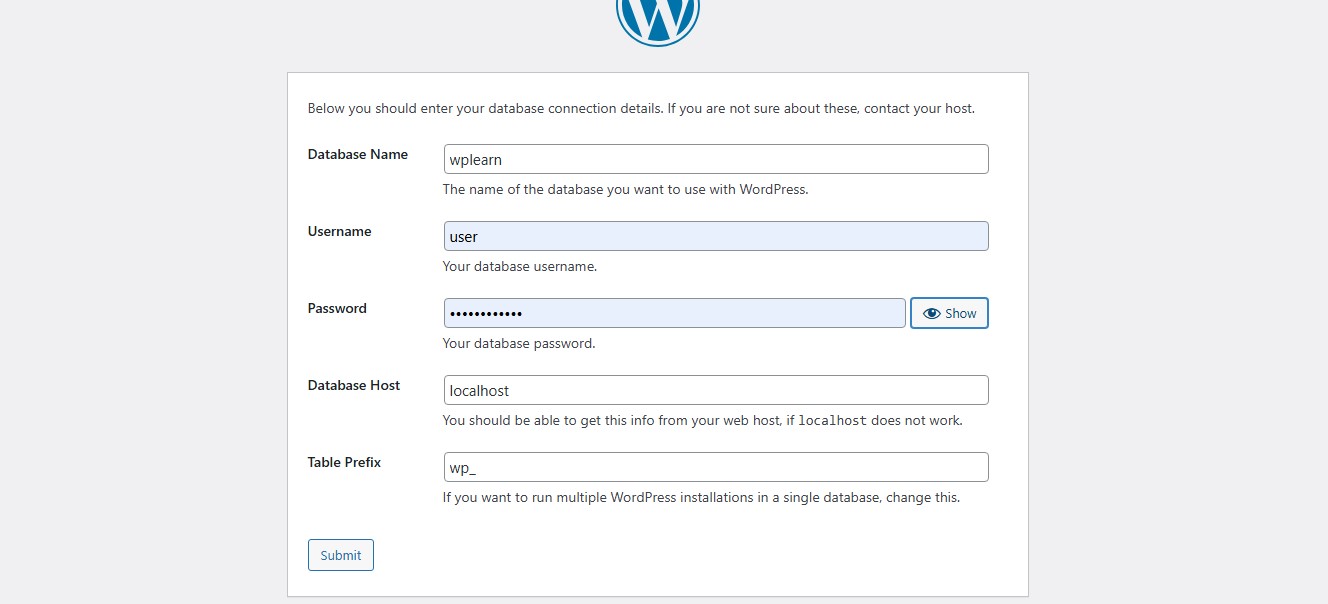
Enter database name as you already created. I created with the wplearn. Username is user and password is root. Database host is localhost and keep the table prefix ‘wp’ and then click on submit button.
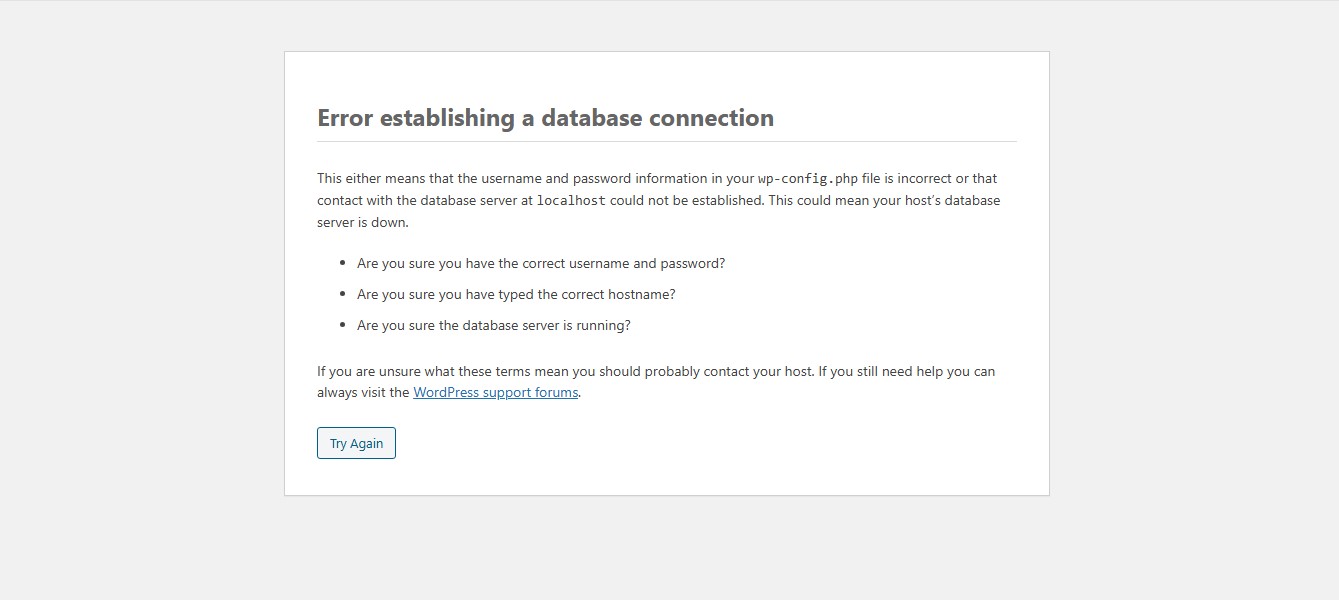
If you have mistake in database details then you will get above mentioned error message so please check your database details and click on try again button.

Click on Run the installation button and it install the WordPress.
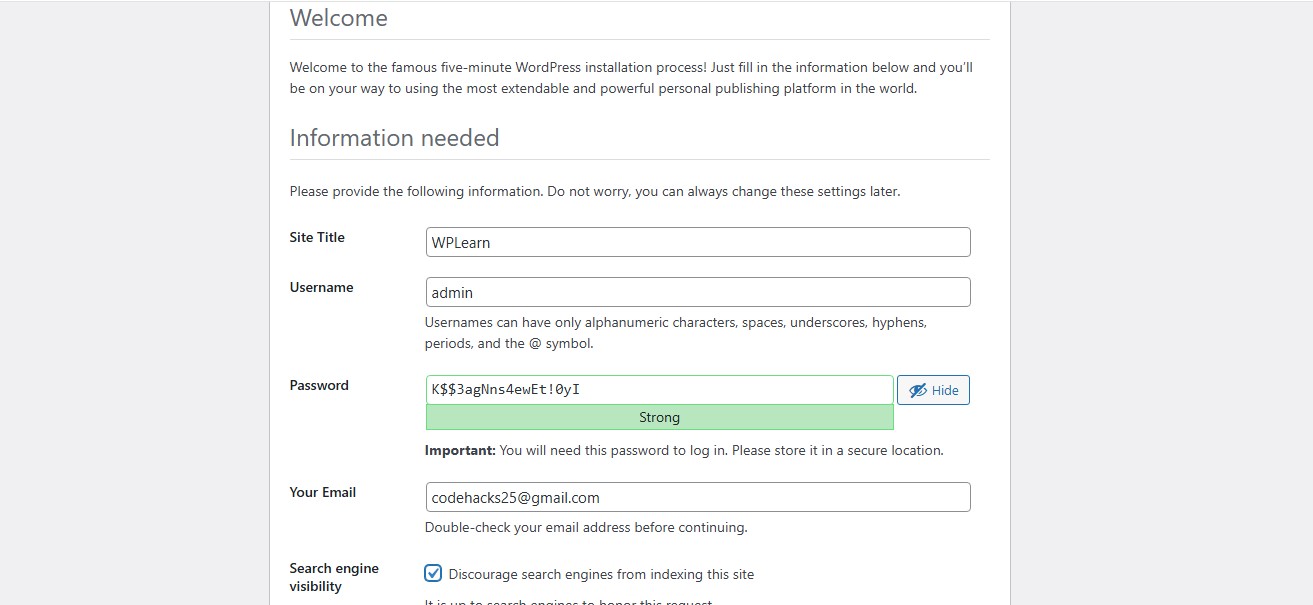
It will ask for Site title, Username, Password, and Email. Enter the site title you wish for your website and user details.
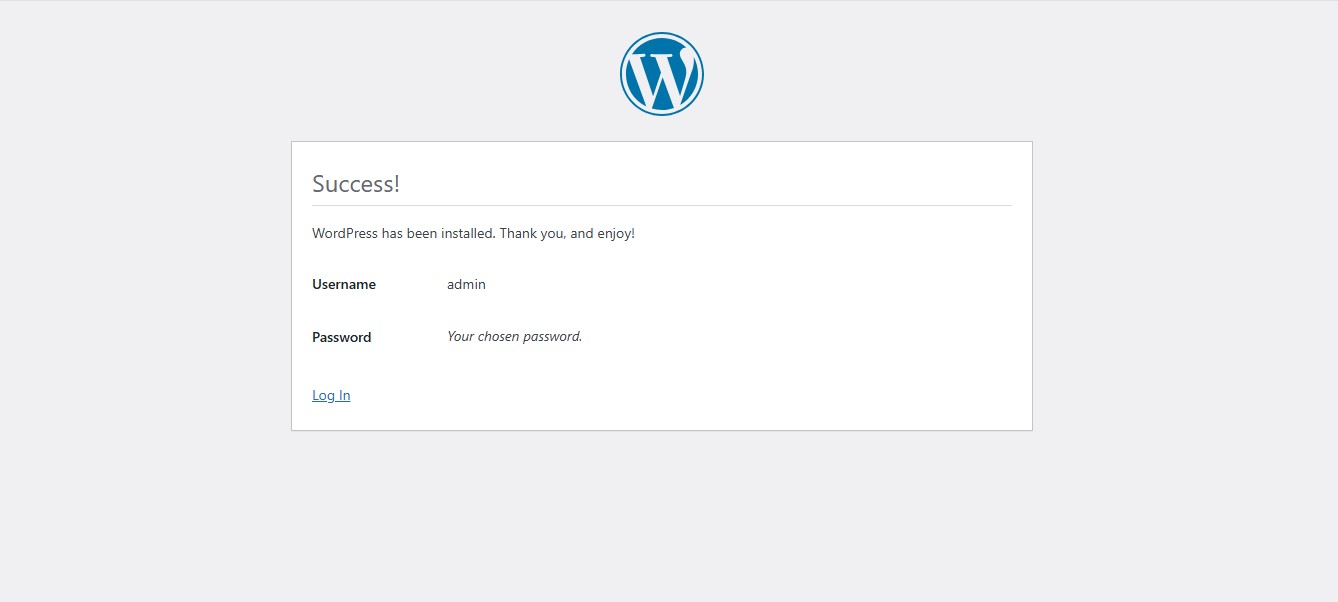
Success! Your WordPress installation successfully completed. Click on Log in button and enter your Username and Password.
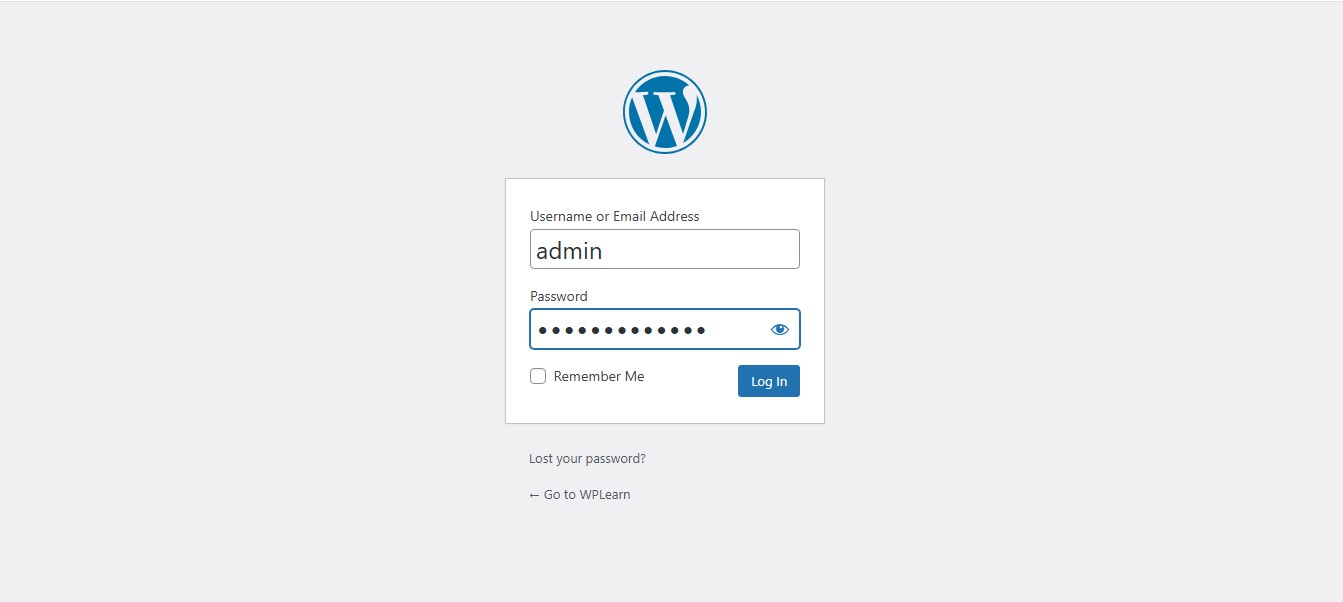
Login your WordPress site and your WordPress setup is ready to use.
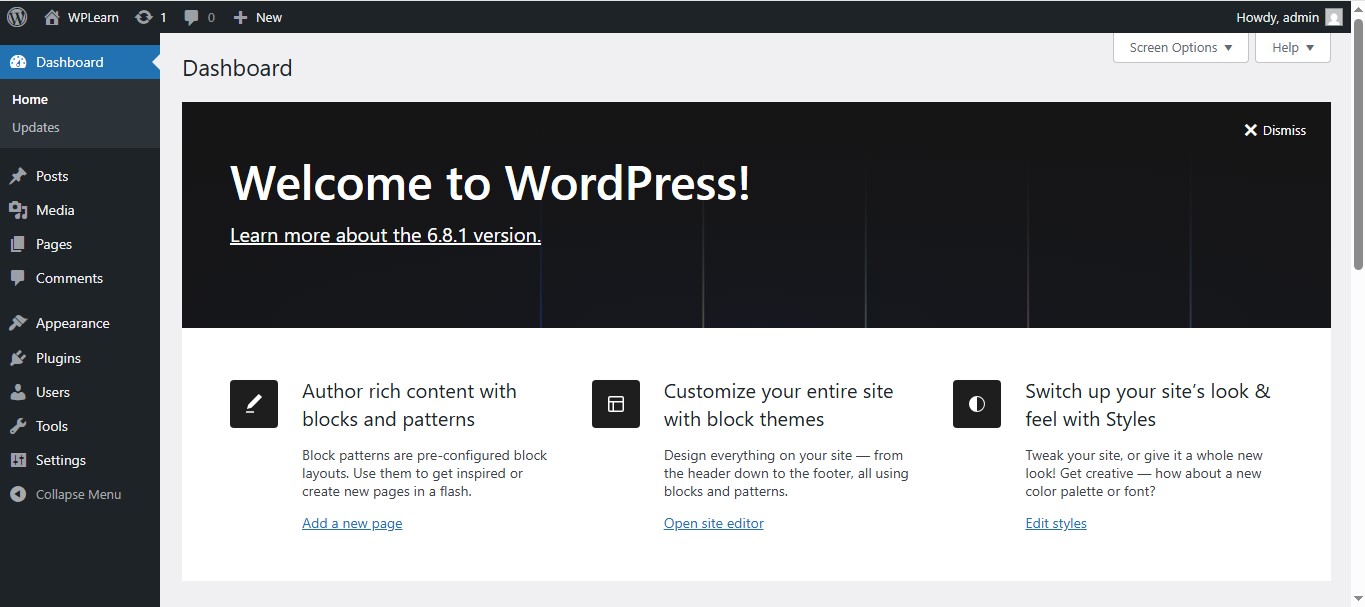
This is your WordPress dashboard when you log into WordPress site. You can create post or pages and can start to design your WordPress.
Conclusion
I attached screenshot for each step and still if you have issue or error while setting up the WordPress using XAMPP then please email me with description and error screenshot. In upcoming articles, I will share knowledge about different topics of WordPress and also other open-source technologies.
If you like this article, then you can write your words in the comments section. Or if you have issue to setup WordPress locally then don’t hesitate to reach out us. Not least but last, you can also follow us on X.com.