In our previous article, we explored the fundamentals of WordPress along with some of its advanced features. In today’s article, we’ll walk through setting up a local WordPress development environment using popular tools available in the market.
We’ll cover the process in detail, including how to download WordPress, create a MySQL database, install WordPress, and configure it for local development.
Table of contents:
- What is WordPress?
- What is Local by Flywheel?
- Features of Local by Flywheel
- Setup local WordPress development by Local by Flywheel
1 – What is WordPress?
WordPress is an open-source Content Management System (CMS) built on PHP and MySQL. It powers approximately 43% of all websites on the internet, making it one of the most widely used platforms globally.
WordPress is highly flexible and user-friendly, allowing anyone—even those without technical knowledge—to build and manage their own website with ease. At the same time, it offers powerful capabilities for developers, who can create custom plugins to extend its functionality without altering the core files.
If you’re a developer looking to build a career in WordPress development, a great place to start is by setting up WordPress on your local machine and exploring its features hands-on.
Here are some popular platforms you can use to set up a local WordPress development environment:
- XAMPP
- MAMP
- Vagrant
- Docker
- Local by Flywheel
In addition to these, there are many other tools available in the market for local WordPress development. In this article, I’ll provide a step-by-step guide to setting up WordPress locally using Local by Flywheel, one of the most beginner-friendly and efficient tools available.
2 – What is Local by Flywheel?
Local by Flywheel (now simply called Local) is a free local development tool designed specifically for WordPress websites. It’s built to simplify the process of creating and managing local WordPress environments on your computer, without needing to manually install server software like Apache, MySQL, or PHP.
3 – Features of Local by Flywheel
3.1 – One-click WordPress Installation
Quickly set up a new WordPress site with a single click, eliminating the need for manual installation processes.
3.2 – Customizable Environments
Tailor your local environment by choosing between Apache and Nginx servers, and switching between different PHP versions.
3.3 – Local Connect
Seamlessly connect Local to your Flywheel or WP Engine hosting account, allowing you to easily push and pull sites between your local environment and live servers.
3.4 – Live Links
Generate shareable URLs to showcase your local site to clients and collaborators without deploying it online.
3.5 – Blueprints
Save site configurations as blueprints to quickly create new sites with your preferred settings, plugins, and themes.
3.6 – Cloud Backups
Sync your Local sites to cloud storage services like Google Drive or Dropbox for convenient backups.
3.7 – SSL Support
Secure your local sites with SSL certificates for a more realistic development environment.
3.8 – WP-CLI Integration
Interact with your local WordPress sites using WP-CLI (WordPress Command Line Interface) for command-line operations.
3.9 – Pre-launch Tools
Local provides tools like broken link checkers and image optimizers to help prepare your site for launch.
3.10 – Site Grouping
Organize your sites into groups for easier management, and stop or start entire groups simultaneously.
3.11 – Add-ons Library
Extend Local’s functionality with various add-ons for specific needs, such as debugging tools or performance enhancements.
3.12 – Email Testing
Test the sending of emails generated by your WordPress site directly from your local environment.
3.13 – Multi-site Support
Local can handle WordPress multi-site setups, making it suitable for complex projects.
4 – Setup local WordPress development by Local by Flywheel
4.1 – Download Local by Flywheel
Download Local by Flywheel from the website https://localwp.com/
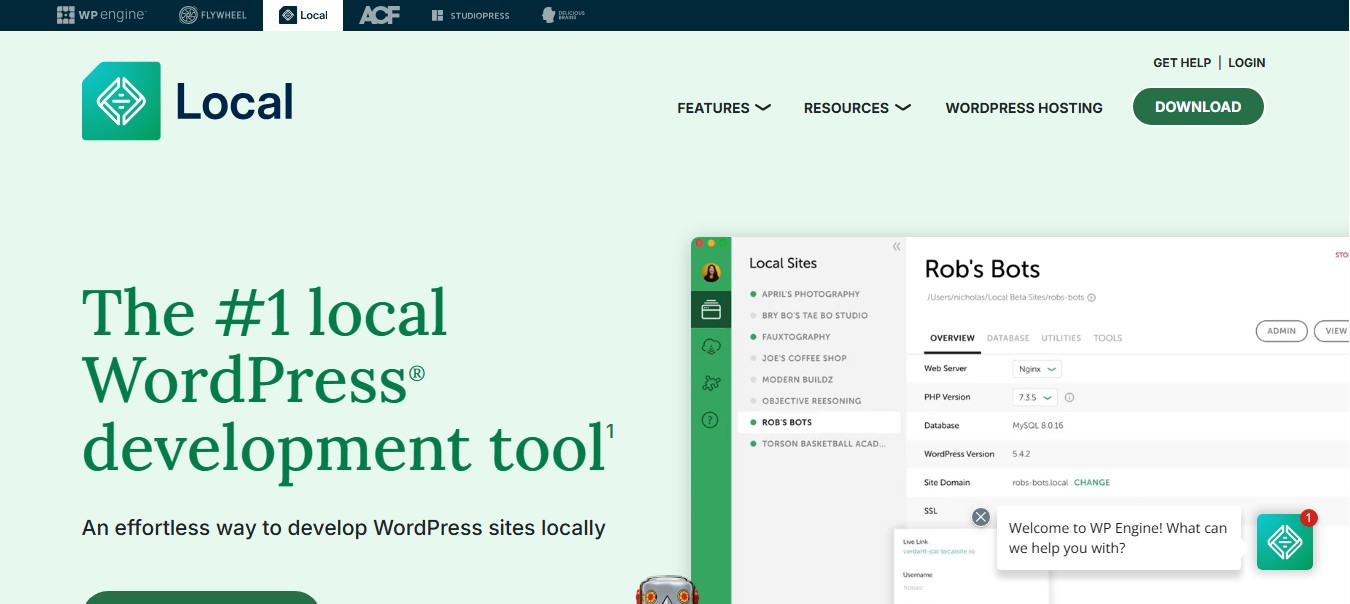
Double click on downloaded file and install the Local by Flywheel in your local system.
4.2 – Open the Software
After installing it in your system, double click on the icon and open the software. When you first time open then your screen looks like this:
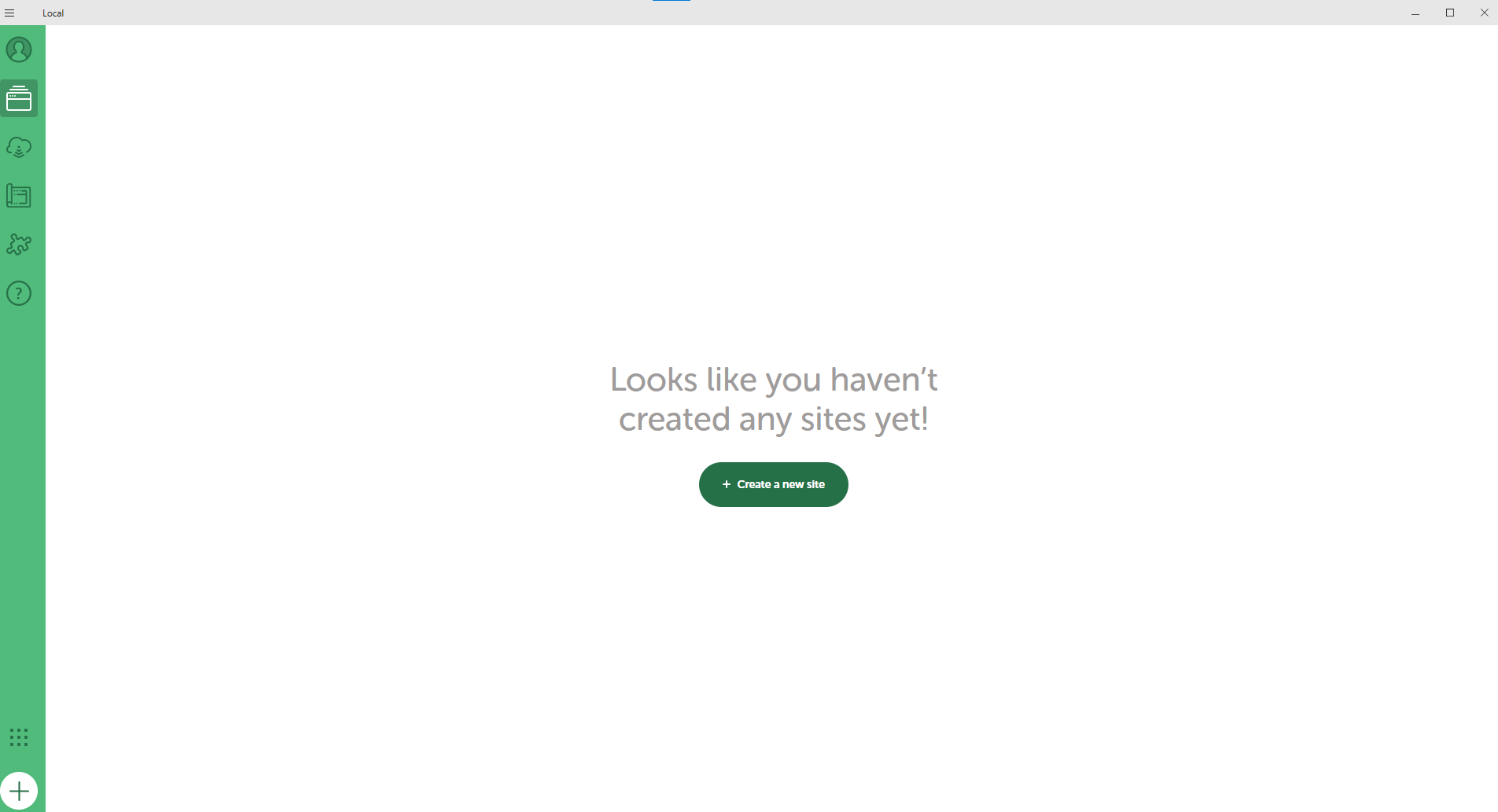
On the left side, you find different options for profile, project directory, project blueprint, preferences, and help. At the bottom, you have “+” icon by clicking on this icon, you can create new site. Click on + icon or “Create a new site” button.
4.3 – Create a New Site
When you click “Create a new site” button then it will ask for Create a new site or Create from a Blueprint.
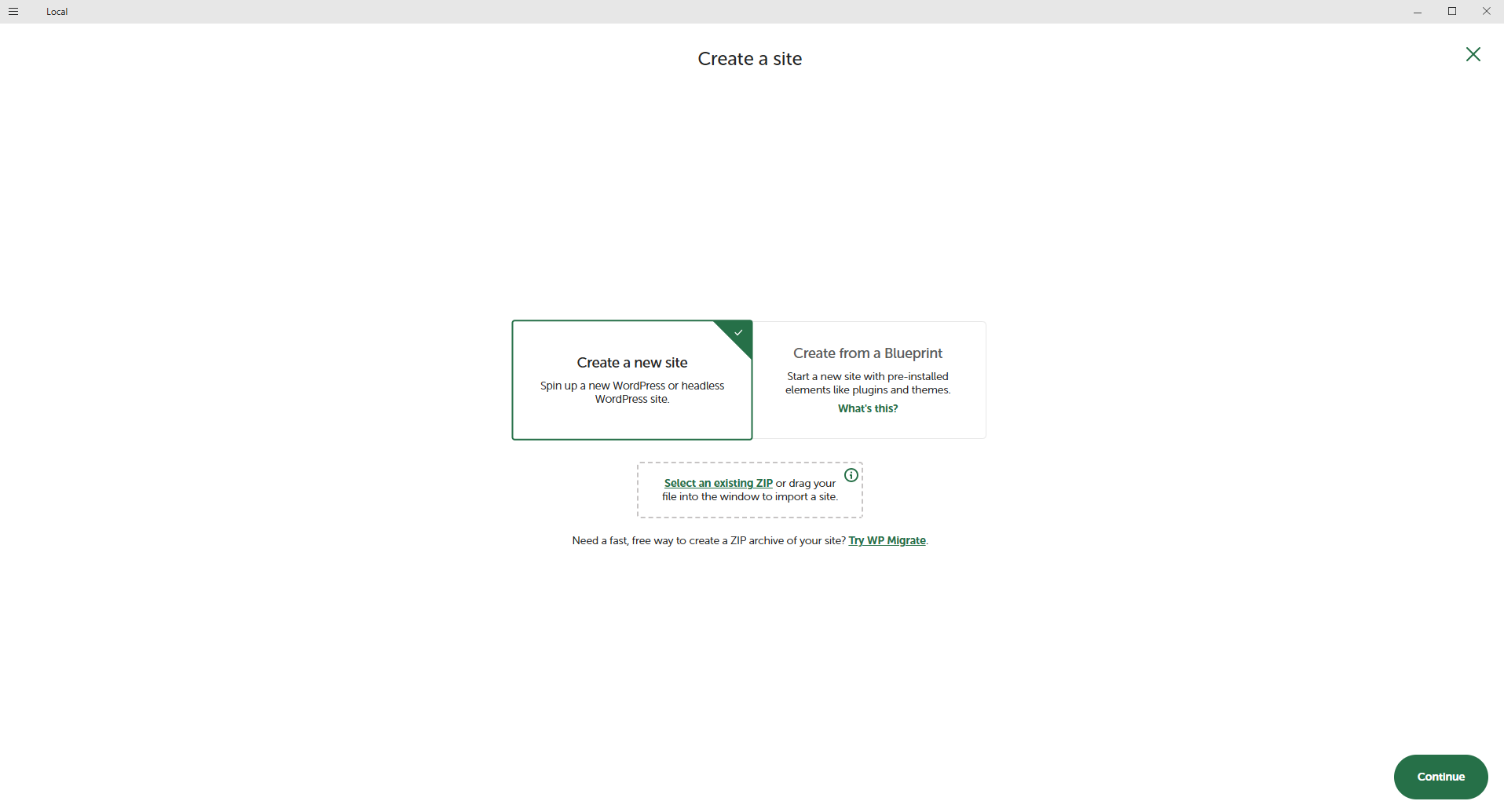
Select Create a new site and click on Continue button.
In next screen, it will ask for site name. Please enter the site name you wish for your business or your project.
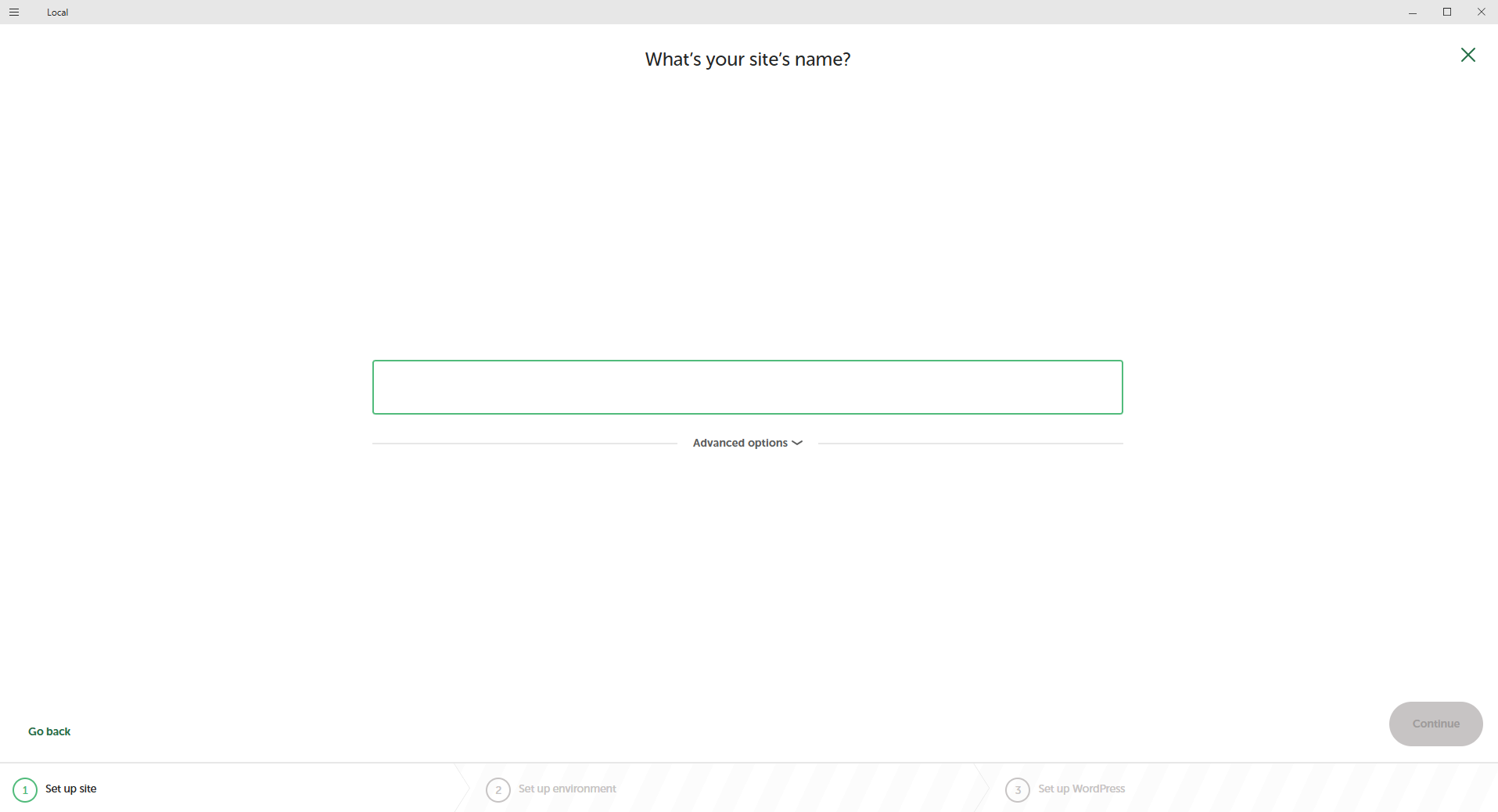
Enter the site name and then check for Advanced options if you want to change setting and click on continue.
4.4 – Choose your Environment
In this step, it will provide development environment information. PHP version, Web server and MySQL version.
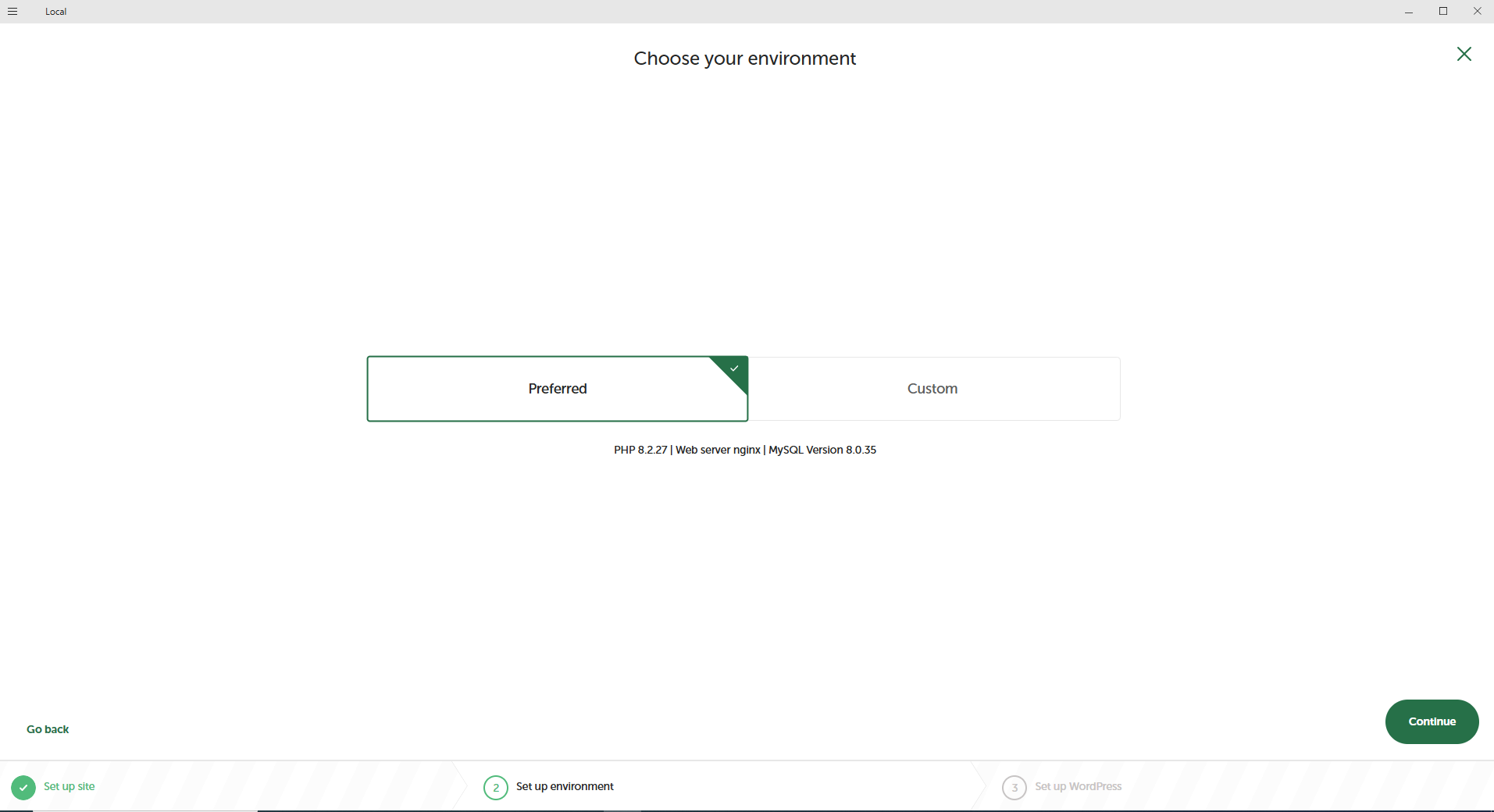
You also have the option to create a custom environment and configure it to your needs. However, customizing the environment requires advanced knowledge of server configurations and related tools.
For most users, I recommend choosing the Preferred Environment to ensure a smooth and hassle-free setup.
4.5 – Set up WordPress
Now set up your WordPress project. Enter username, password and email. Apart from that you can choose site language and also create Multisite from the Advanced options.
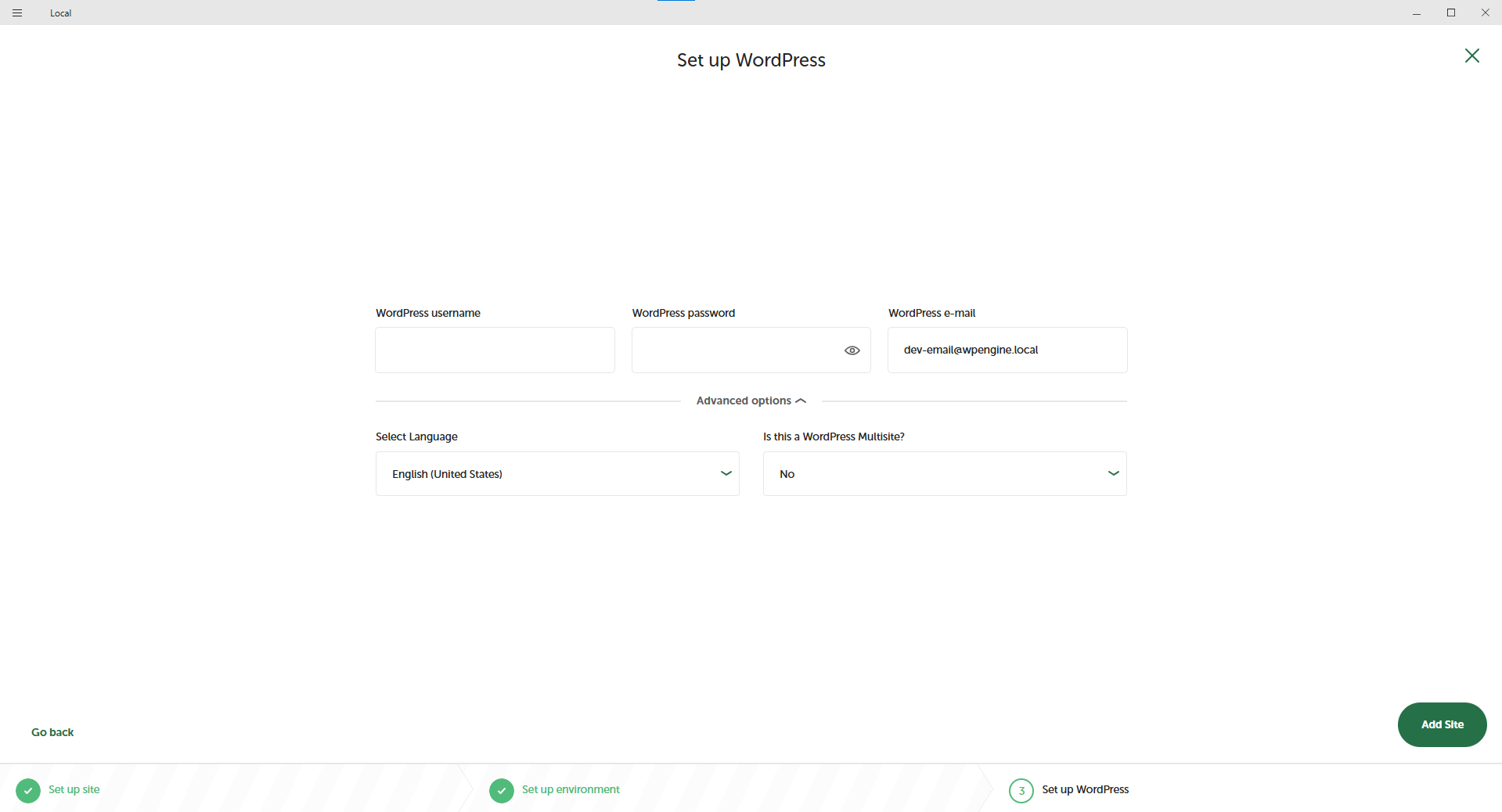
After setting up WordPress, click on Add site button.
4.6 – Your Local WordPress project is ready!
The software will create WordPress project as per your input. You don’t need to do manually WordPress installation, database creation and all other things.
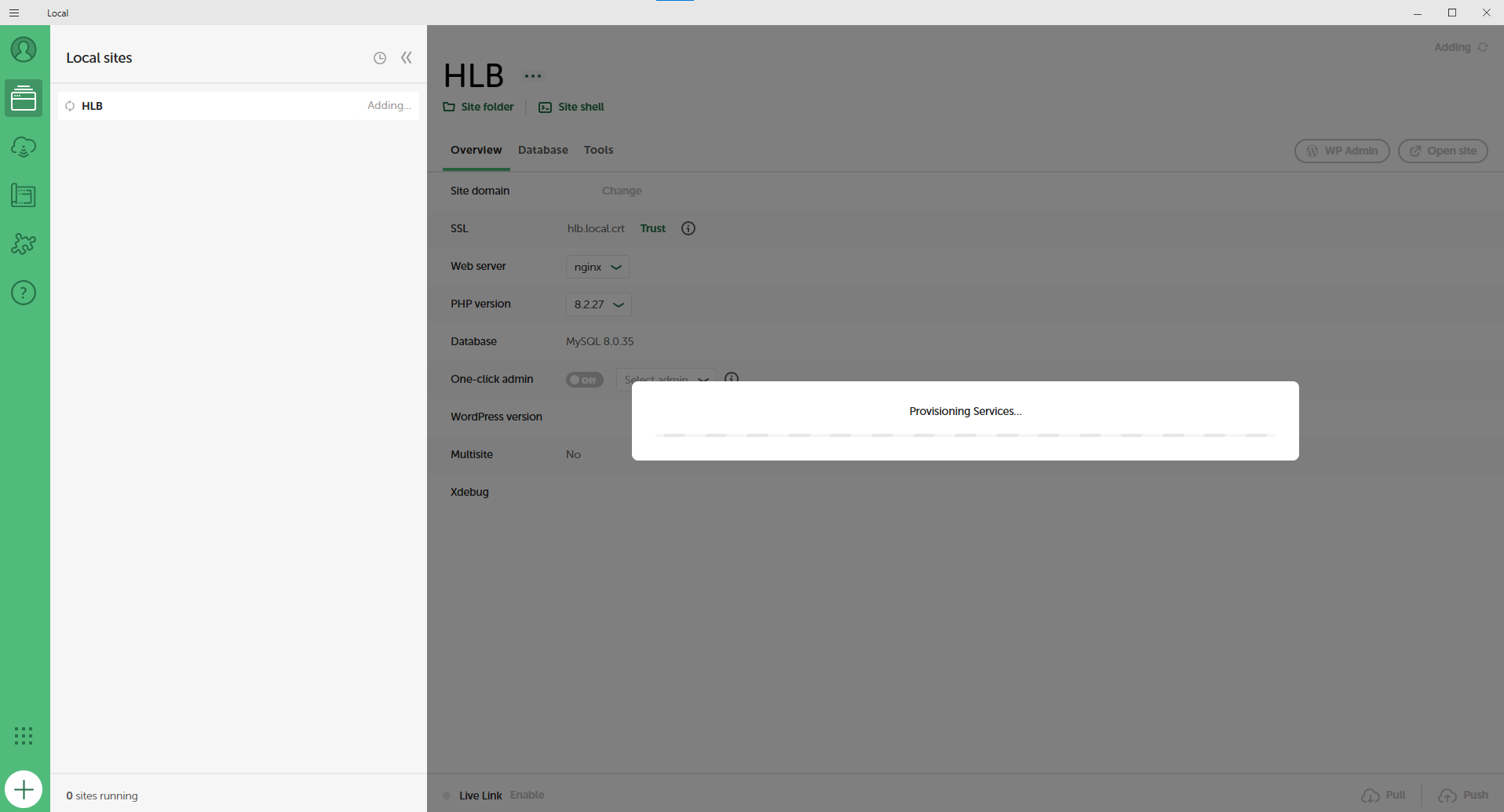
Now after installation, you need to start site by clicking on Start site button from the top right corner button. Here, you can find all the details about your project on the starter screen.
4.7 – Overview of starter screen
From the Site folder link, you can navigate to the project directory on your local system. Use the Site Shell to run WP-CLI commands for various operations.
In the Overview tab, you’ll find all the configuration details, including the PHP version, WordPress version, and more. You can also change the PHP and WordPress versions using the dropdown menus.
The Database tab displays key database information such as the database name, username, and password. You can access the Adminer tool to view and manage your website’s data stored in the database.
In the Tools tab, you’ll find a range of utilities available for managing your WordPress site.
Conclusion
I’ve provided a complete guide to setting up WordPress locally. Local by Flywheel is a user-friendly tool that makes it easy to get started with WordPress, even if you’re not a developer or a technical user.
In my upcoming articles, I’ll be covering more advanced WordPress topics along with practical, hands-on tutorials to help you take your skills to the next level.
If you found this helpful, feel free to share it or leave a comment—I’d love to hear your thoughts!
If you like this article, then you can write your words in the comments section. Or if you have issue to setup WordPress locally then don’t hesitate to reach out us. Not least but last, you can also follow us on X.com.
1 thought on “Getting Started with WordPress: Setting Up Your Local Development Environment”