In our previous articles, we explored a complete overview of PHP — including its key features, benefits, and popular CMS platforms built with it. In this post, we’ll walk you through a step-by-step guide to setting up a PHP development environment on your local system.
What is PHP?
PHP is an open-source, server-side scripting language designed for web development. Developers often embed PHP into HTML to build dynamic and interactive web pages. You can also use PHP to connect with databases, process forms, and manage sessions on the server. But when it comes to working on PHP projects locally, how do you create the right setup? In this guide, we’ll cover the essential tools needed to get started with PHP development on your local machine.
Here is a list of platforms you can use to setup PHP local development environment.
- XAMPP
- MAMP
- WampServer
- Vagrant
- Docker
- Local by Flywheel
Developers often choose XAMPP and MAMP first when setting up a local PHP development environment, as these tools are among the most popular options available. In this article, we will learn how to setup local PHP development environment using XAMPP and MAMP.
How to setup local PHP development environment using XAMPP?
XAMPP is an open-source web server solution package. It is mainly used for web application testing on a local host webserver. XAMPP stands for Cross-platform Apache Server MariaDB PHP Perl.
1 – Download and install XAMPP on your local system.
2 – After installing the XAMPP, open the app and start Apache server and MySQL database.
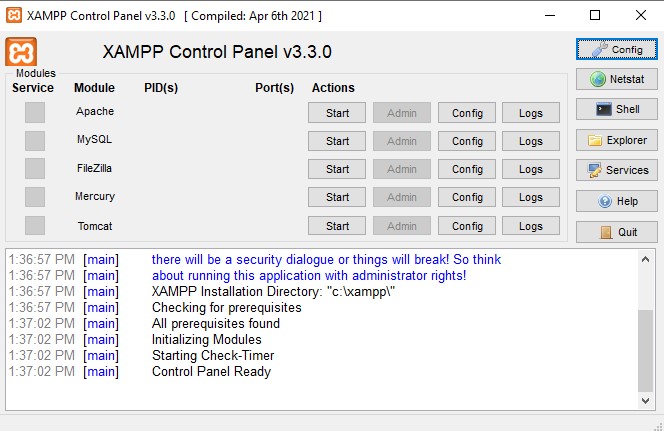
3 – Now go to C:/Program Files/XAMPP/htdocs
4 – Here, create your project directory for which name you want to create a project. For ex. I create the directory with the project name “Project1”.
5 – Now go to the directory Project1 and the path is C:/Program Files/XAMPP/htdocs/Project1
6 – Now add your all PHP files in this Project1 directory. For ex. I create one php file in this Project1 directory i.e. index.php
<!-- index.php file -->
<?php

echo "Hello, PHP!";

?>
7 – Now run the url: http://localhost/Project1/index.php in your browser and you will check output your index.php file in the browser.
How to setup local PHP development environment using MAMP?
MAMP is a free, local server environment that provides Apache, Nginx, PHP, and MySQL, enabling users to develop and test websites on their computers without needing a live server. MAMP stands for macOS, Apache, MySQL, PHP.
The components of MAMP:
- MySQL
- Apache
- Nginx
- PHP
- Caches
- MAMP Cloud Connect
1 – Download and install the MAMP from the MAMP website.
2 – Open the MAMP and start the server by clicking on start button.
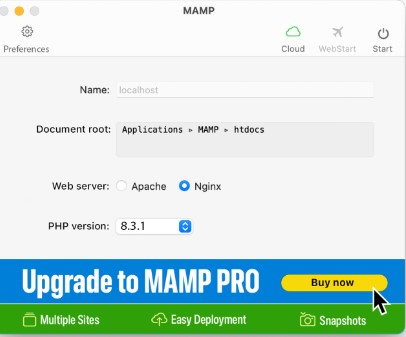
3 – Now go to /Applications/MAMP/htdocs on your macOS.
4 – Create your project directory in the htdocs folder. For example, I am creating Project1 directory in the htdocs folder.
5 – Add your php files in this Project1 directory. I create new file named index.php in this Project1 directory.
<?php

echo "Howdy, PHP!";

?>
6 – To display the output on the browser, visit the url http://localhost/Project1/index.php.
Conclusion
Setting up a local PHP development environment is the first step in starting your web development journey. In this article, we covered how to set up a project using XAMPP and MAMP. In the upcoming articles, we’ll explore more examples — including how to connect to a database and store data. If you have any questions or run into issues while setting up your project, feel free to reach out to me.
If you like this article, then you can write your words in the comments section. Or if you have query or suggestions then don’t hesitate to reach out us. Not least but last, you can also follow us on X.com.